Blender Cloth Simulation Tools Addon
The Blender Cloth Simulation Tools Addon is a powerful tool for preparing 3D objects for use in Cloth Simulations within Meta Spark Studio. This addon simplifies the process of rigging and preparing your 3D models, ensuring they are optimized for realistic cloth physics.
The addon works with Blender 2.80 or later, meaning you can easily pair it with the Meta Spark Toolkit to optimize your models.
Installing the Addon
Installing the Blender Cloth Simulation Tools Addon is straightforward. Follow these steps:
- Download the Addon: Obtain the addon from the official repository or download link provided.
- Open Blender: Launch Blender on your computer. Blender 2.80 or later is required.
- Install the Addon:
- Navigate to
Edit > Preferences. - Select the
Add-onstab. - Click on
Installand choose the downloaded addon file. - Enable the addon by checking the box next to its name in the list.
- Navigate to
- Save Preferences: Click on
Save Preferencesto ensure the addon remains active in future sessions.
You will find the Addon in the Tools panel in the 3D Viewport.
[!TIP] For a visual guide, you can watch this installation video.
Tools and Features
Create new bone grid
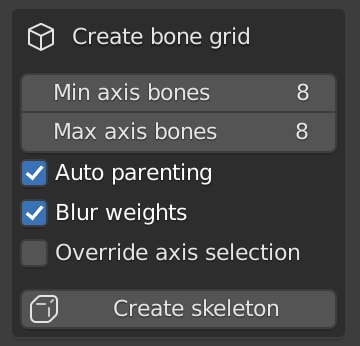
Using the "Create bone grid" panel in the addon you'll be able to create a new bone grid with the desired settings. This is useful to create a bone structure for your 3D model that is ready for cloth simulation.
This grid will be evenly spaced along the axis you choose, and you can customize the number of bones, whether to parent the rig to the model using automatic weights, and whether to smooth the rig's weights after parenting.
Bone grid settings
- Max axis bones: The amount of bones to place along the largest axis of the objects bounding box
- Min axis bones: Bones to place along the second largest axis of the objects bounding box
- Auto parenting: Whether to parent the grid automatically to the selected object after creation
[!TIP] By default the addon will place bones along the two largest axis of the model's bounding box. You may override this behavior by selecting checking the "Override axis" checkbox and selecting the desired axis (must select two axis).
Modify existing skeleton

Using the "Modify existing skeleton" panel to:
- Blur weights: This will smooth the weights of the rig's bones, this ensures smooth and consistent lighting during the simulation. Change the "Blur settings" to adjust the smoothing. Note that smoothing weights is a computationally expensive operation, it may take a while depending on the system resources available at the time
- Flatten a skeleton: This will output a skeleton with a shallow structure (required to perform the simulation) from a rig that may contain multiple levels of bone nesting.
- Reparent using automatic weights: This will reparent the rig to the model using automatic weights, useful if you decide to manually rig the object but would still like to parent using automatic weights.
Automatic parenting
[!NOTE] Parenting with Automatic Weights is a Blender feature, not an addon feature. The addon simply provides a convenient way to access this feature. Learn more about it here
Best Practices
To get the most out of the Blender Cloth Simulation Tools Addon, consider these best practices:
- Clean Topology: Ensure your 3D model has a clean and efficient topology. Avoid unnecessary vertices and keep the mesh as simple as possible while maintaining the necessary detail.
- Proper Rigging: Use the addon’s automatic rigging tools, but double-check and adjust the rig manually if needed to ensure accuracy.
- Consistent Scale: Maintain a consistent scale for your 3D models to ensure the cloth simulation behaves as expected.
Performance

[!CAUTION] Performance warnings: If you saw a performance warning displayed in the addon panel, it is likely to be because the model you are working with has a high number of vertices or bones.
Please be mindful about the size of the model you are working with, and remember the addon might cause Blender to slow down when the model is large or the bone count/ smoothing settings are too high
These warnings are a conservative estimate. Your performance may not be representative of the warning. Use the warning as a guideline.
Tips to improve performance
- Reduce Bone Count: Use the minimum number of bones necessary to achieve realistic movement. More bones increase accuracy but can reduce performance.
- Optimize Mesh: Keep the mesh simple and avoid high-poly models unless necessary. This reduces the computational load during simulation.
- Manually rig or weight paint: You may choose to disable automatic parenting or weight blurring, and perform these steps either manually or with the help of the addon as a separate step. This will reduce the likelihood the CPU load will exceed your system's capabilities and freeze.
[!NOTE] The algorithm will always finish given enough time and sufficient CPU resources, so if Blender freezes momentarely, it is likely to recover after a few seconds. Use the performance warnings as a guideline to avoid long freezes.
Learn More About Blender
Blender is a powerful open-source 3D program. Visit https://www.blender.org/ to download and learn more.
Learn More About Meta Spark
Meta Spark is a powerful platform for creating augmented reality experiences. To fully leverage the cloth simulation tools within Meta Spark, consider exploring these resources:
- Meta Spark Official Website: https://spark.meta.com/
- Community and Forums: Join the Meta Spark community to connect with other developers, share your work, and get feedback.
By utilizing the Blender Cloth Simulation Tools Addon and integrating it with Meta Spark, you can create stunning and realistic cloth simulations, enhancing the immersive quality of your augmented reality projects.

Written, developed, and hosted with ❤️ by Tomas Pietravallo. 2024. Tomas is a Computer Science student with a passion for simulations and teaching. More about Tomas